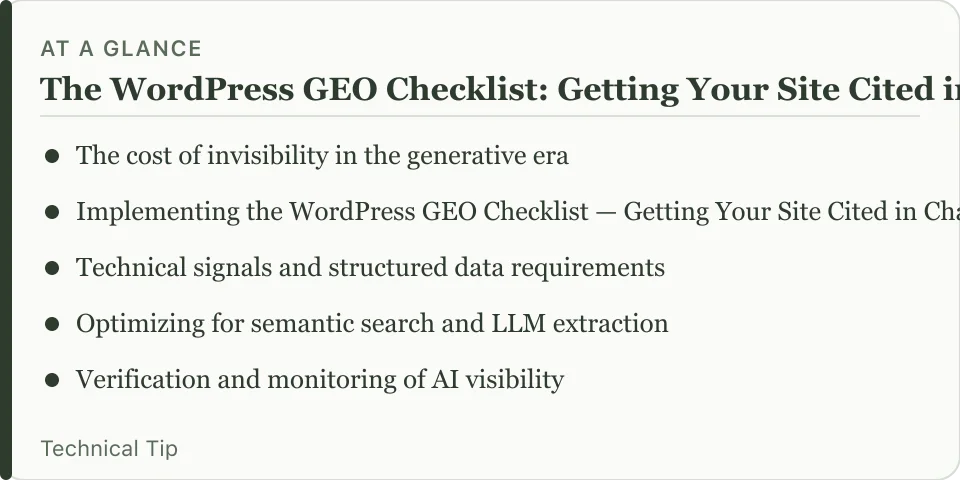
AI search engines don’t just look for keywords. They want authoritative, structured, and highly specific entities to pull into their response windows. If your WordPress site lacks the technical signals Large Language Models (LLMs) need, you’ll stay invisible in ChatGPT results and Google AI Overviews. Following The WordPress GEO Checklist: Getting Your Site Cited in ChatGPT and AI Overviews is how you move from traditional SEO to Generative Engine Optimization (GEO).
The cost of invisibility in the generative era
Organic traffic is shifting toward zero-click searches. The AI just provides the answer directly on the search engine results page. When a user asks a complex question, the LLM pulls info from multiple trusted sources. If those sources don’t include your domain, you lose the top-of-funnel awareness that used to come from blue links. seen sites with high traditional rankings lose nearly 40% of their visibility because they failed to use structured data that AI crawlers could easily parse.
Ignoring GEO means your content becomes part of the training data but never becomes the cited source. This creates a dangerous loop. You provide the value that powers the AI, but the AI never sends the traffic back to you. You’re essentially subsidizing the growth of AI models without any of the attribution benefits. To avoid this, you must treat your WordPress site as a structured database rather than just a collection of articles.
Implementing the WordPress GEO Checklist: Getting Your Site Cited in ChatGPT and AI Overviews
GEO requires a fundamental shift in how you manage your content architecture. You can’t just write better prose. You have to ensure that prose is wrapped in technical metadata that proves its intent and authority. The first pillar of this checklist involves structured data implementation. While most bloggers use basic Schema.org plugins, AI engines require much more granularity to establish your site as a primary source.
Step-1: Move beyond simple Article schema. You should implement specialized schemas like TechArticle, HowTo, or FAQPage depending on your content type. If you’re writing about cloud infrastructure, using SoftwareApplication or Dataset schemas can help LLMs understand the technical specifics of your tutorials. This is particularly important when you’re managing complex data, such as when you’re Mastering Amazon S3 Data Upload and need to provide specific technical parameters that an AI can extract.
Step-2: Focus on entity density and semantic richness. LLMs work through vector embeddings, which represent the relationship between concepts. To rank in AI overviews, your content must contain high-density clusters of related entities. For example, if you’re discussing WordPress performance, don’t just mention "speed." Mention specific technical components like "object caching," "database indexing," "CDN edge locations," and "TTFB (Time to First Byte)." This semantic clustering allows the model to confidently map your content to a specific expert topic.
Technical signals and structured data requirements
To help your chances of being cited, your WordPress site must communicate its reliability through technical verification. AI models are trained to prioritize sources that demonstrate high E-E-A-T (Experience, Expertise, Authoritativeness, and Trustworthiness). You can automate much of this through advanced schema deployment. According to the GEO Checklist – Official Reference, structured data helps AI understand your site’s purpose and how it works, which is the bedrock of generative visibility.
| Schema Type | Primary Benefit for GEO | Best Use Case |
|---|---|---|
TechArticle | Defines technical depth and complexity | Tutorials, deep dives |
HowTo | Provides step-by-step logic for LLM extraction | Process guides, migrations |
FAQPage | Directly answers common user queries | Problem-solution posts |
Author | Connects content to a verified identity | Expert-led technical blogs |
Using a Child Theme is essential when you want to manually inject custom schema into specific templates without losing those changes during a parent theme update. This prevents your technical SEO foundation from being wiped out by a standard WordPress update. When you implement custom schema, you’re providing a "cheat sheet" for the AI crawler, making it much easier for the model to summarize your content accurately.
Optimizing for semantic search and LLM extraction
LLMs don’t read like humans. They process tokens and probabilistic relationships. To ensure your content is extracted, you must prioritize clarity and directness in your headings and opening sentences. When a user asks a question, the AI looks for the most direct answer to include in its summary. If your answer is buried in the third paragraph of a long-winded introduction, the AI might skip your site entirely.
One effective method is the "Definition-First" approach. Start your section by explicitly defining the term or solving the problem in a single, punchy sentence. This mimics the way models are trained to recognize authoritative statements. For instance, if you’re explaining how to use Rclone to sync files, start with: "Rclone is a command-line program to manage files on cloud storage." This clear, entity-heavy sentence provides a high-confidence signal for the LLM.
You should also improve your media. AI search engines are increasingly multimodal, meaning they look at image alt text and captions to understand context. If you’re illustrating a cloud migration from DigitalOcean Spaces to Amazon S3, your images should have descriptive, entity-rich alt text like "Architecture diagram showing data transfer from DigitalOcean Spaces to Amazon S3 using Rclone." This adds another layer of semantic verification for the engine.
Verification and monitoring of AI visibility
Unlike traditional SEO, where Google Search Console provides exact impression and click data, tracking AI visibility is harder. You can’t yet see exactly how many times ChatGPT cited your specific URL in a conversation. However, you can use proxy metrics to verify if your GEO efforts are working. The first method is monitoring your brand entity mentions across the web. As you become more cited in AI responses, your brand should appear more frequently in the training sets and real-time search results.
Another method is to perform manual "query testing." Use ChatGPT, Perplexity, and Google AI Overviews to ask questions directly related to your niche. If you’ve followed The WordPress GEO Checklist: Getting Your Site Cited in ChatGPT and AI Overviews correctly, your site should appear in the citations or as a recommended source. If you find that competitors are being cited instead, analyze their content structure. Are they using more granular schema? Is their heading hierarchy more logical?
If you’re managing large-scale content, you might need to automate some of these checks. For those running programmatic SEO, ensuring your database architecture is clean is vital. If you’re looking into How to Run Programmatic SEO on WordPress Without Database Bloat, you’ll find that cleaner data leads to more efficient crawling, which indirectly aids your GEO performance. High-performance sites that load quickly and deliver clean, structured HTML are prioritized by both traditional crawlers and LLM-based agents.
Frequently Asked Questions
How is GEO different from traditional SEO?
Traditional SEO focuses on keywords, backlinks, and user click-through rates for blue links. GEO, or Generative Engine Optimization, focuses on entity relationships, semantic density, and structured data to ensure your content is the primary source an AI uses to construct its summarized answer.
Will GEO replace SEO for WordPress users?
No, GEO is an evolution of SEO rather than a replacement. You still need traditional technical SEO for indexing and ranking in standard search results, but you must add a layer of structured, entity-rich content to capture the growing segment of AI-driven search traffic.
Does schema markup actually help in ChatGPT?
Yes, because ChatGPT and other models use browsing tools to access live web data. When these tools crawl your site, structured data like TechArticle or FAQPage provides a high-confidence map that helps the model extract and cite your information accurately.
What is the most important part of the GEO checklist?
The most critical component is establishing entity authority through a combination of granular schema and semantic richness. You must prove to the model that your site is a definitive source on a specific topic by using precise technical terminology and clear, direct answers.